

PaymentHood for VirtueMart
Accept payments through 30+ providers with a single plugin. Install it on your Joomla / VirtueMart store, connect your account, and start processing payments in minutes.

Installation Guide
Follow these steps to install PaymentHood in your VirtueMart store
Download the Plugin
Download the latest PaymentHood plugin for VirtueMart from our GitHub repository. It is a standard Joomla extension package (.zip); no build steps or extra dependencies required.
Upload & Install in Joomla
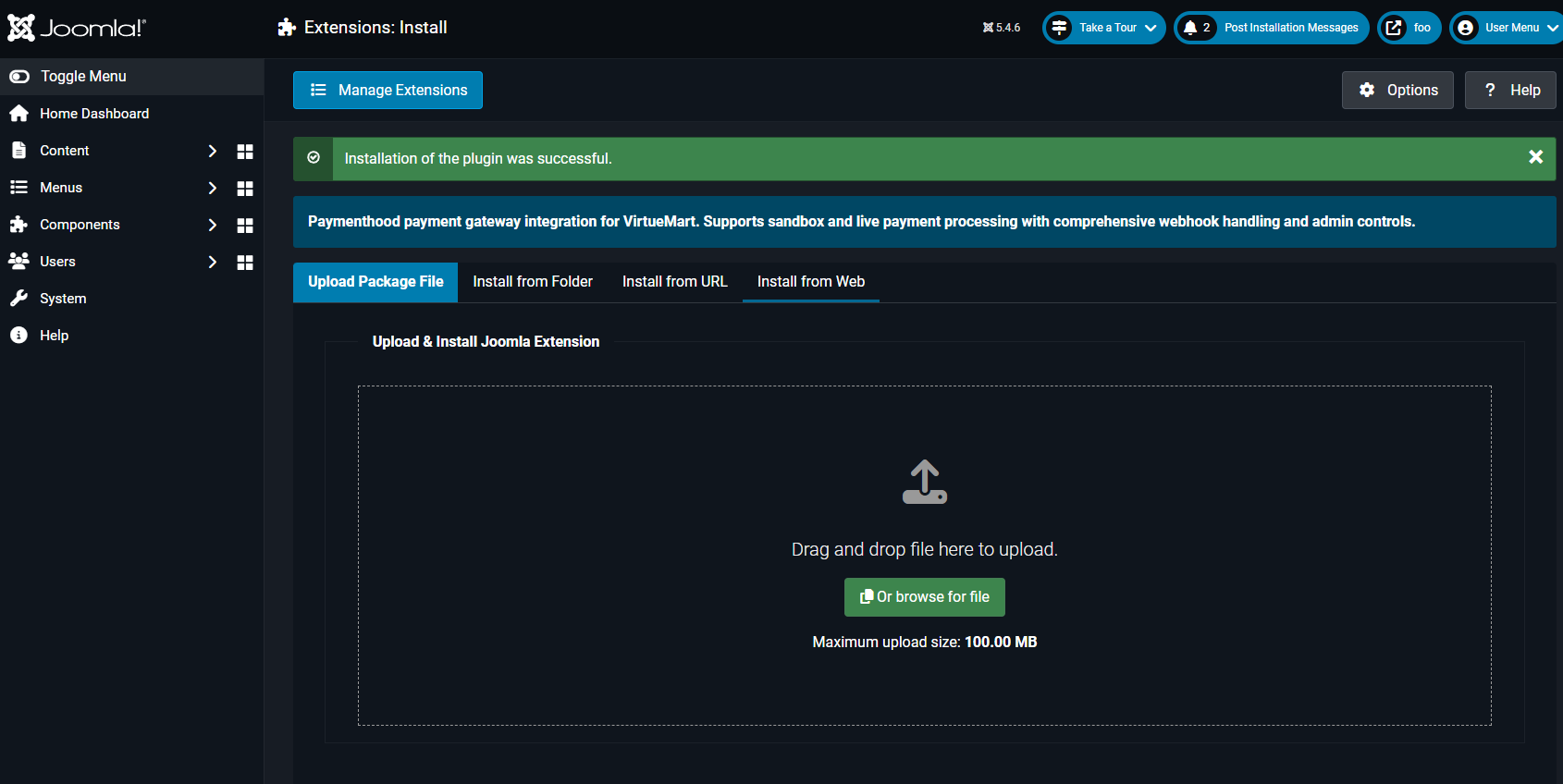
Log in to your Joomla administrator and go to Extensions → Install. On the Upload Package File tab, drag & drop the ZIP you downloaded (or click Or browse for file). Joomla installs it in seconds and shows “Installation of the plugin was successful.”
Confirm the Plugin is Installed
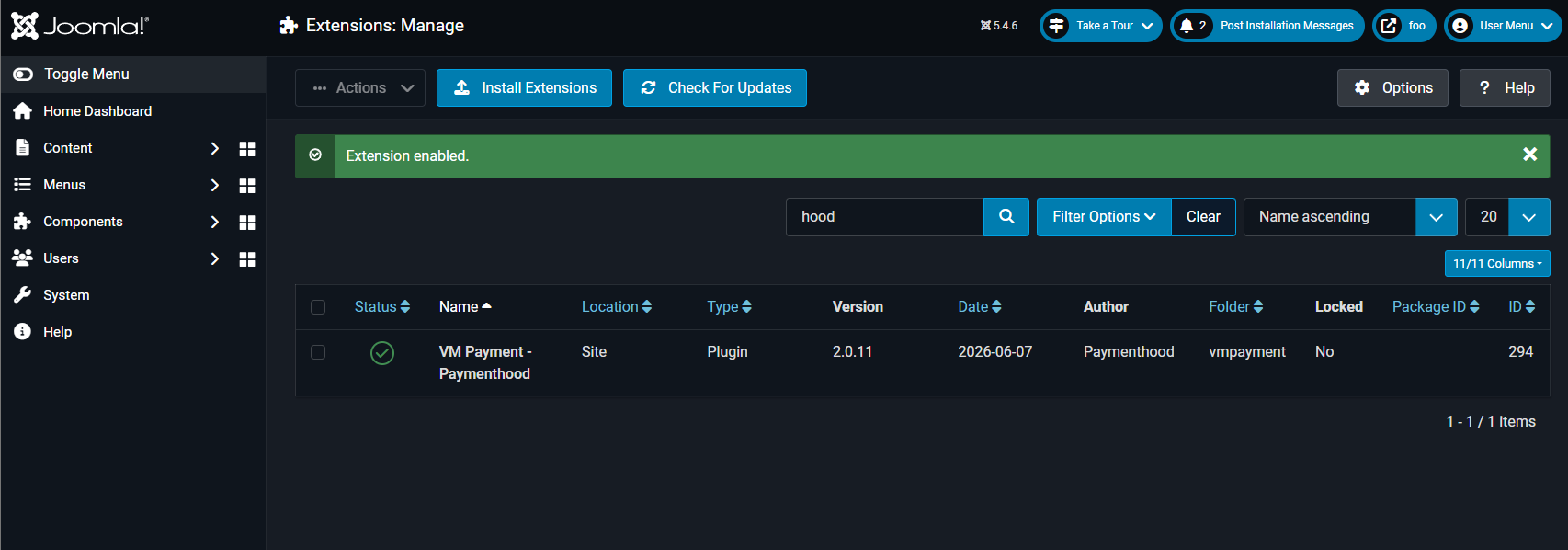
Go to Extensions → Manage and search for “VirtueMart - PaymentHood”. You should see it listed as a Site Plugin in the vmpayment folder, by Paymenthood, and enabled.
Open the PaymentHood Plugin
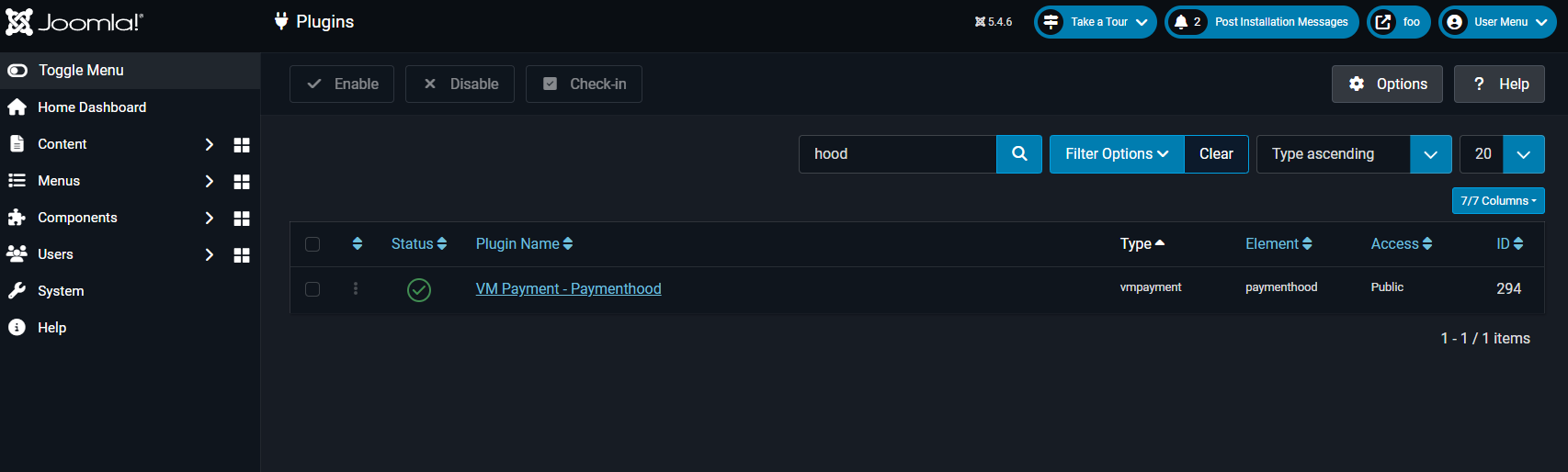
Go to System → Plugins, search for “VM Payment - Paymenthood” (type vmpayment, element paymenthood), and click the plugin name to open its settings.
Configure & Connect Your Account
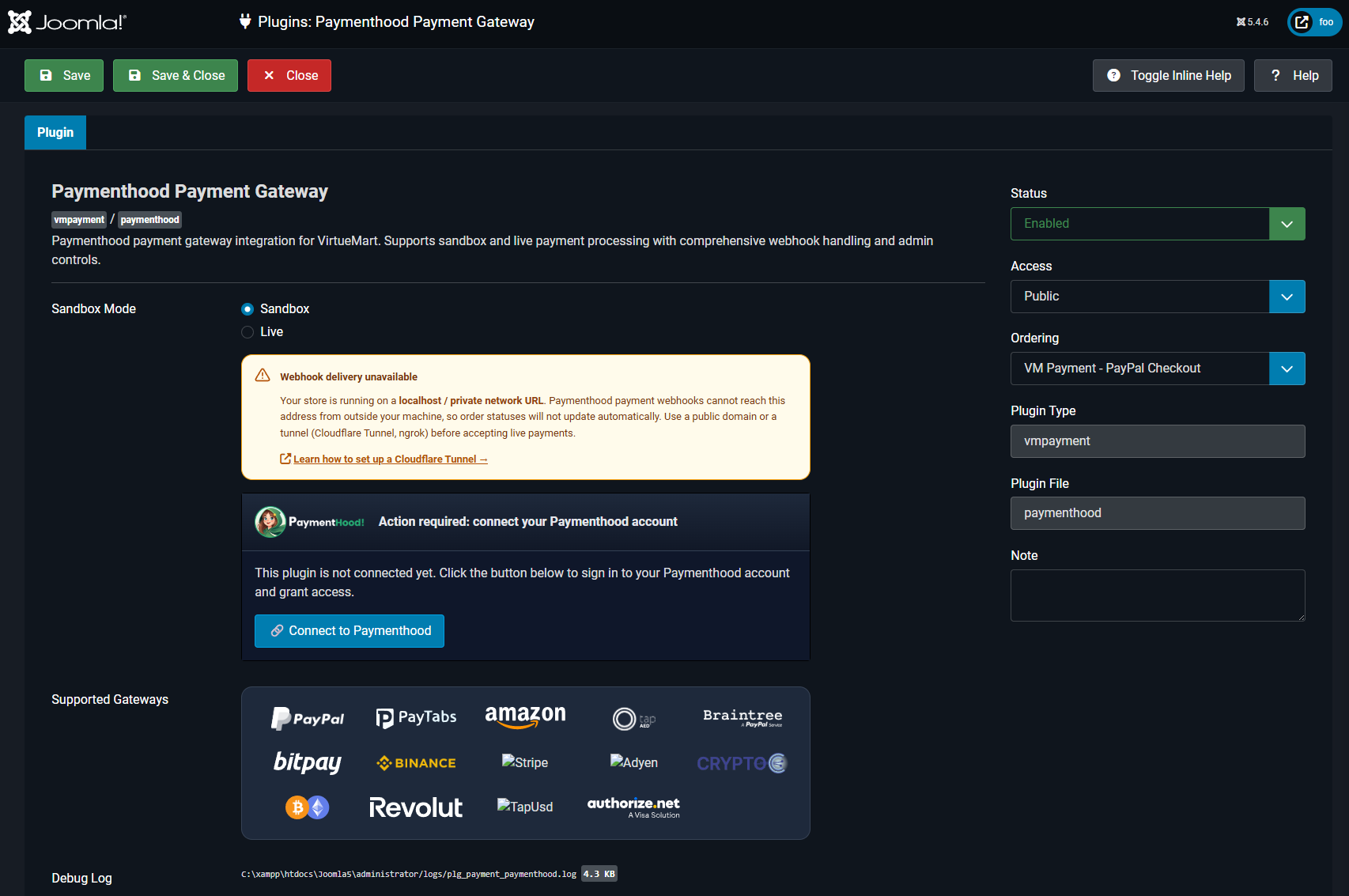
Set the Display name shown to customers at checkout (e.g. PaymentHood) and turn on Sandbox mode while you are testing. Then click Connect to Paymenthood to link your account.
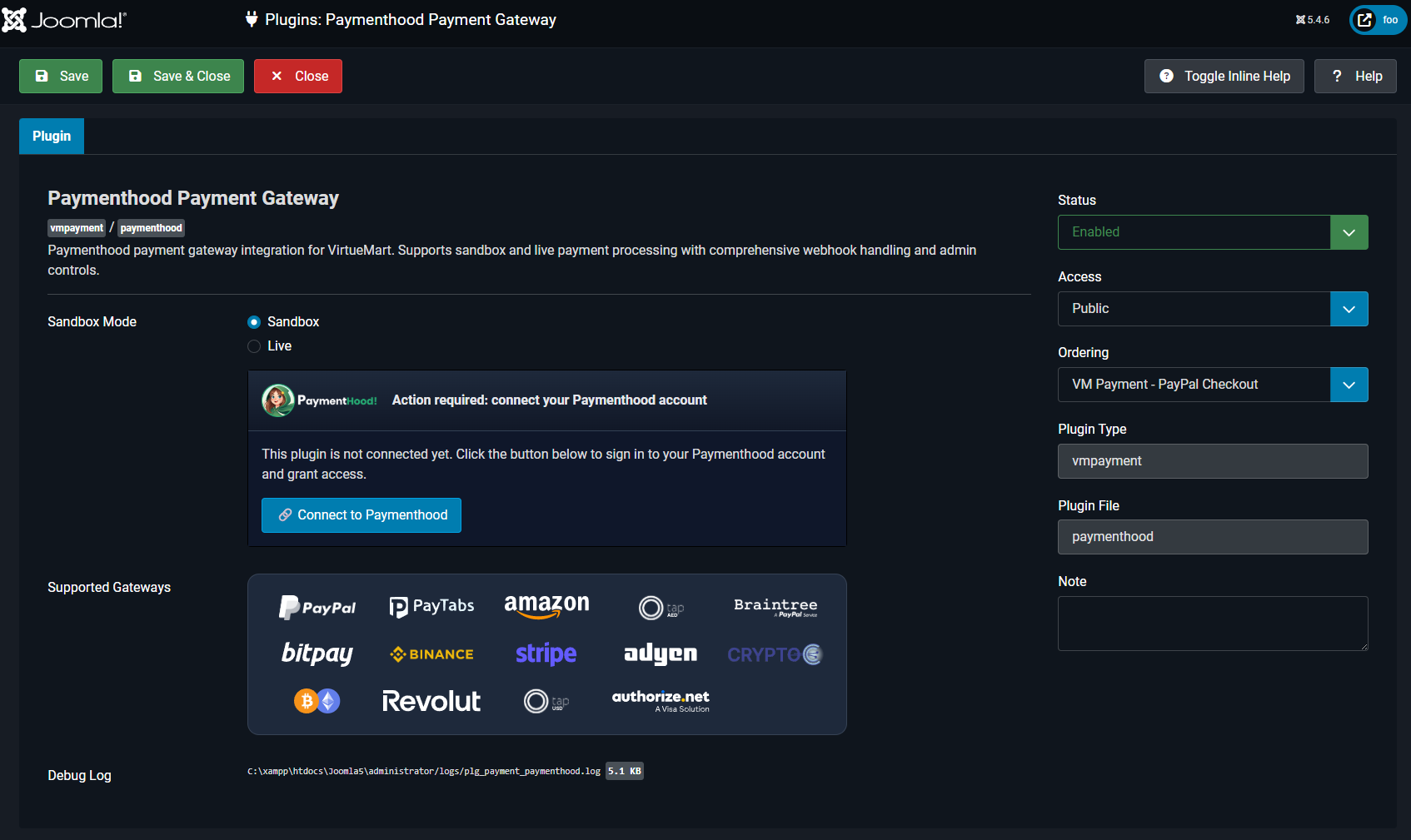
Complete Your Sandbox & Live Setup
Once connected, the panel shows “PaymentHood is connected” with two environments: Sandbox (for trial transactions) and Live (for real payments). Click Complete Setup on an environment to be taken to the PaymentHood Console to configure it.
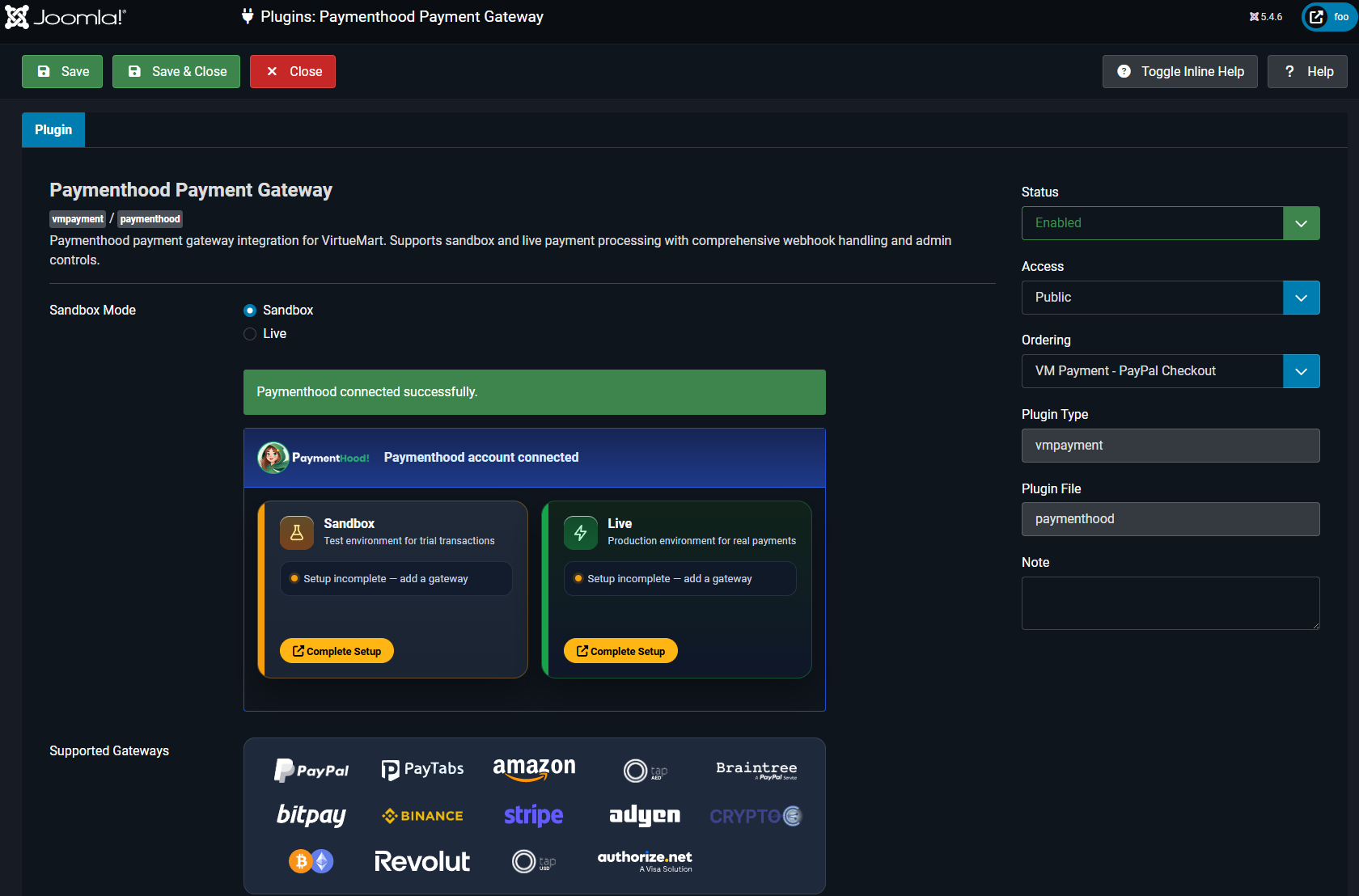
Add Your Payment Gateways
When an environment is configured it shows “Sandbox account is ready” (or Live). Use Manage Gateways to add and enable the providers you want: PayPal, Stripe, Authorize.net, Adyen, and more, all from your PaymentHood account.
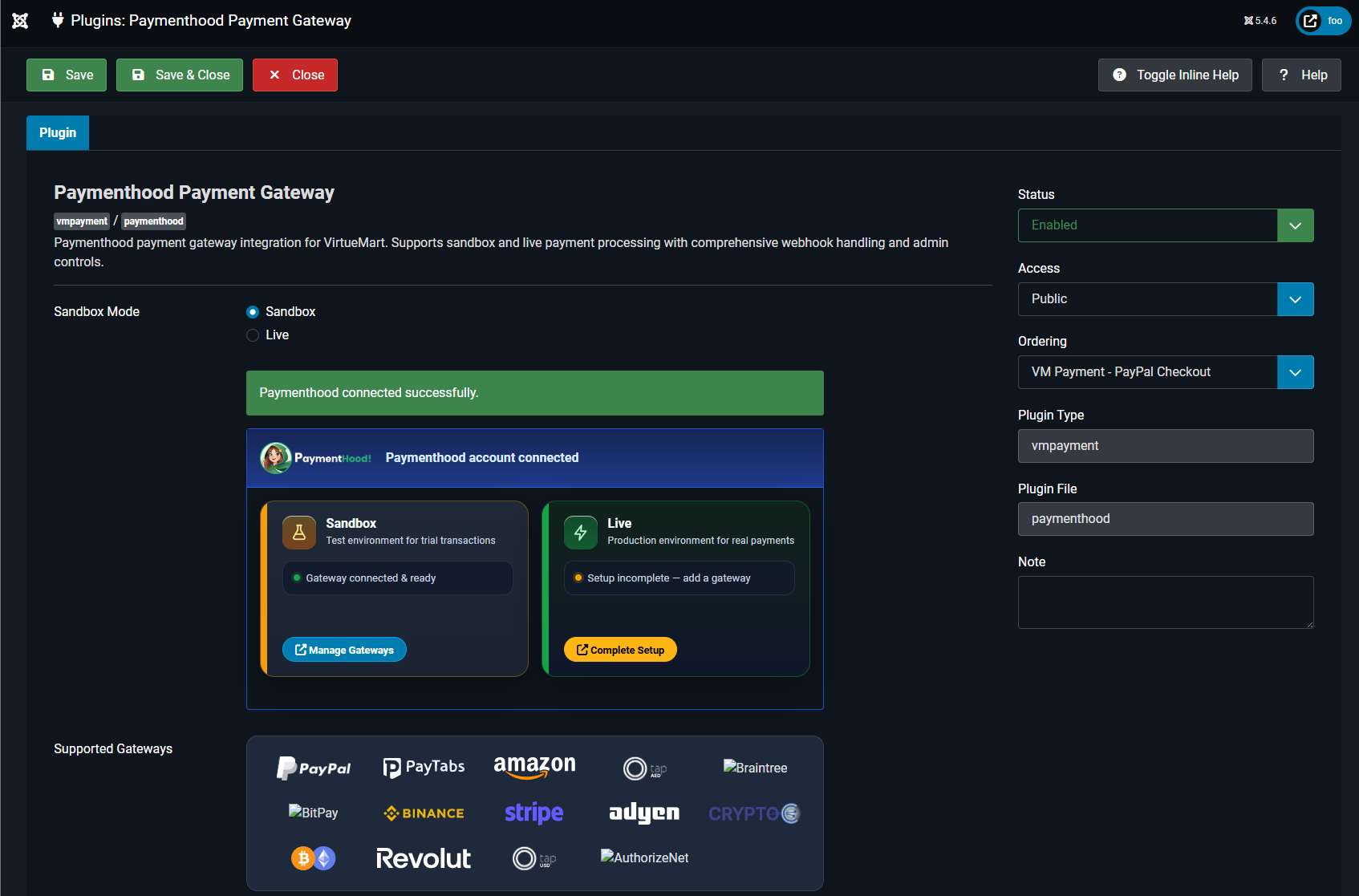
Define a Payment Method in VirtueMart
For PaymentHood to appear at checkout, define a payment method in the VirtueMart component. Go to VirtueMart → Shop → Payment Methods and click New. Give it a Payment Name (e.g. PaymentHood), set Published to Yes, then choose Payment Method → plg_vmpayment_paymenthood and Save.
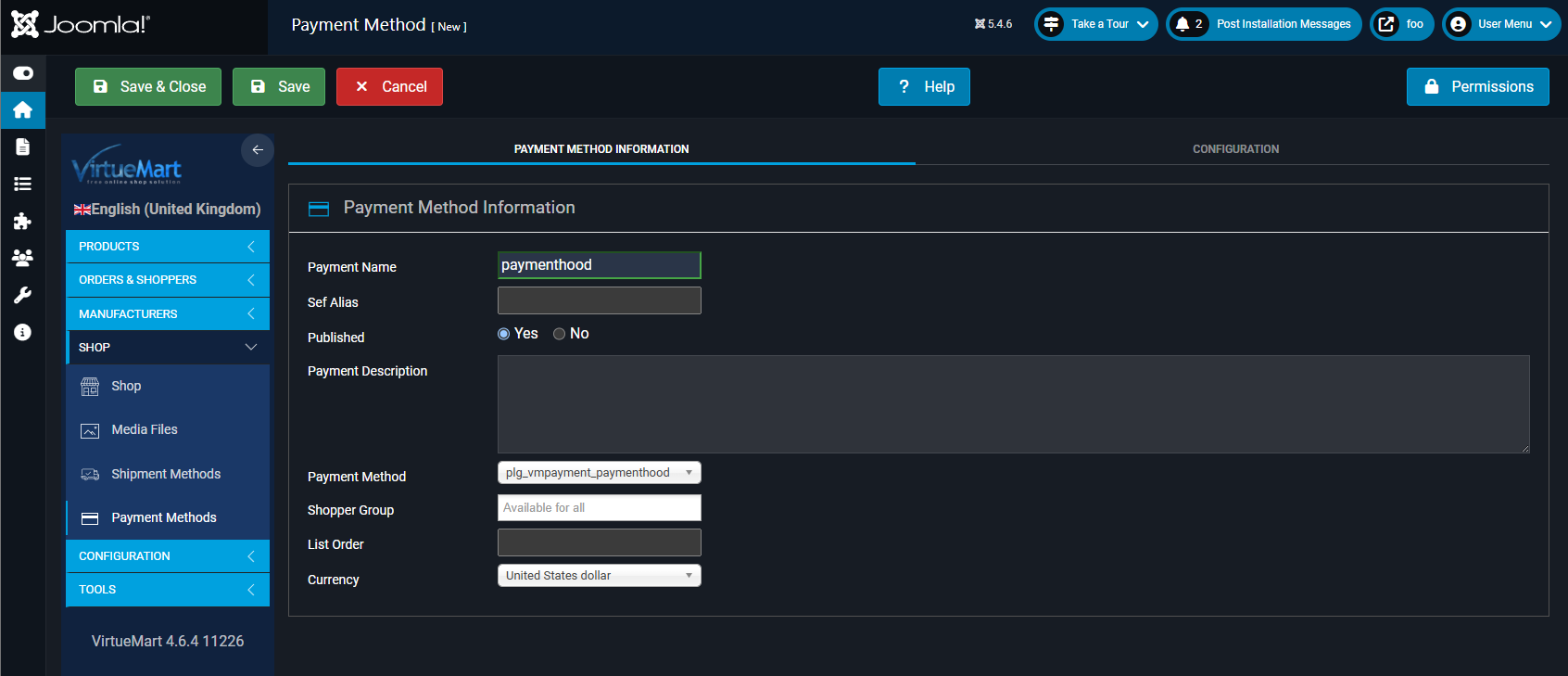
What Your Customers See at Checkout
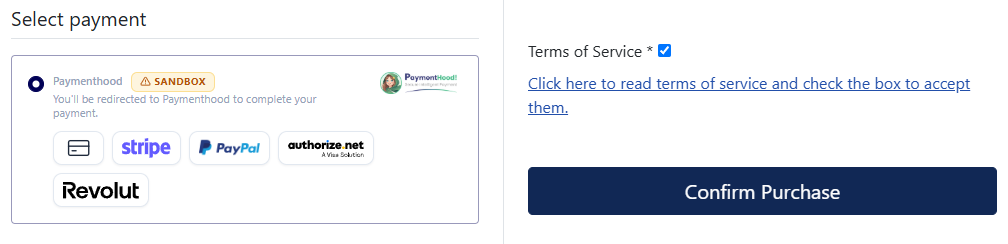
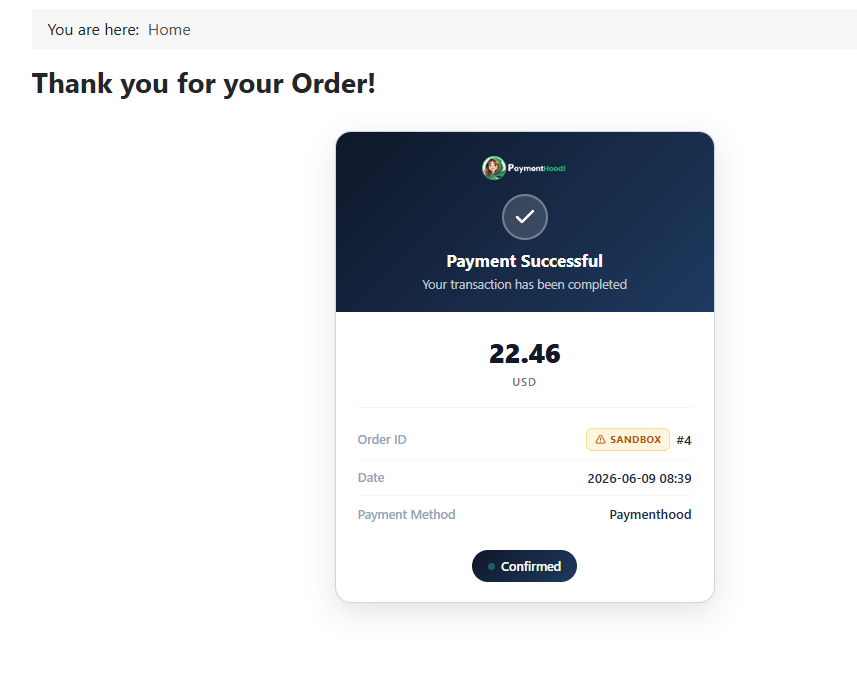
At checkout, shoppers select PaymentHood and confirm their purchase. They're securely redirected to PaymentHood to pay, then returned to a clear confirmation; the Sandbox badge shows you're still in test mode.
Ready to Get Started?
Download the PaymentHood VirtueMart plugin and start accepting payments in minutes.